- Product

- Pricing
- Affiliate Program
- Use Cases
- Resource
 EN
EN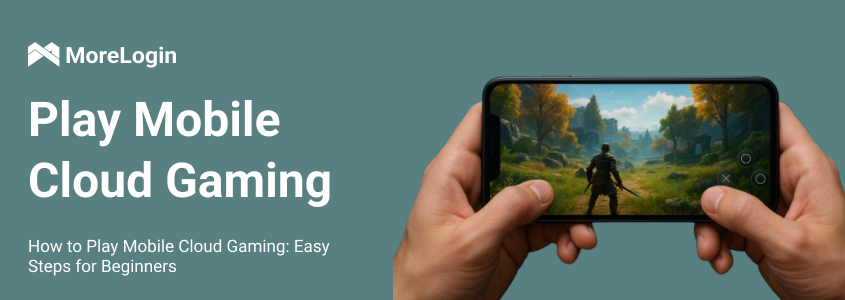
By 2025, mobile cloud gaming will be one of the most popular ways to play games. This is because it breaks down hardware limitations and allows users to enjoy high-quality games on nearly any device.
This article will help beginners understand what mobile cloud gaming is, how to get started, what devices are required, how to resolve common issues, and how to optimize the overall experience for an efficient and smooth mobile cloud gaming experience.
Mobile cloud gaming is a method of running games via cloud servers. All game processing and image rendering are performed in remote data centers, while the user's device is solely responsible for receiving the video and uploading control commands.
Mobile cloud gaming offers three significant advantages. First, it no longer requires high-performance hardware. Even mid-range and low-end devices can run large-scale games. Second, users can access the gaming world anytime, anywhere, as long as they have a stable network connection. Finally, cloud gaming eliminates the need to install local files, significantly reducing device storage usage and making it particularly suitable for users with limited storage space.
While cloud mobile gaming has a relatively low hardware threshold, there are still some basic equipment and environment requirements that we recommend confirming before getting started:
Operating System Requirements
Android devices are recommended to use Android 9.0 or higher, and Apple devices are recommended to use iOS 14 or higher.
Network Bandwidth Requirements
A stable downlink speed of at least 10 Mbps is required to support 720p gaming. For 1080p or higher quality, a bandwidth of 25 Mbps or higher is recommended.
Wi-Fi Network Configuration
A 5GHz Wi-Fi router is recommended for greater signal stability and lower latency.
Bluetooth Controller Support (Optional)
For action or racing games, a controller can improve control flow, but is not essential.
Headphones or Speakers
Using headphones enhances immersion and reduces external interference.
Battery Support
Long gaming sessions can drain the battery significantly. It is recommended to have a charger or power bank available to prevent power outages.
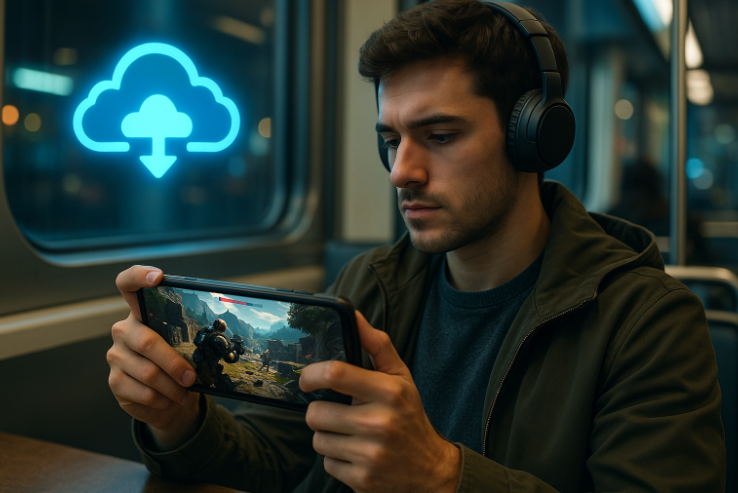
After understanding the device requirements, mobile cloud gaming users should follow the steps below to ensure a smooth process and the best experience.
Before getting started, confirm which cloud gaming platforms are available in your region. Regional support varies between platforms. For example, Xbox Cloud Gaming is only available in select countries such as the United States and the United Kingdom, while GeForce NOW still has queues or restrictions in some regions like Italy or Spain.
Check whether the platform offers a free trial, requires a subscription, supports certain devices, and whether the game catalog contains the content you want. Once confirmed, decide whether to register or proceed to the download page.
Based on the device requirements listed above, ensure your phone, tablet, or computer meets the minimum system and network requirements. A stable Wi-Fi connection and accessories like controllers and headphones will help ensure a smoother gaming experience.
Users must register a personal account on their chosen platform. Registration typically supports email, mobile phone number, or a third-party social media account. After logging in, you must link your game store account (such as Steam or Epic Games) to sync your game library.
During the linking process, carefully read the authorization prompts to avoid game download failures due to permission settings.
Use a speed test tool to test your current network latency and bandwidth. Latency should be less than 60 milliseconds, and bandwidth should be consistently above the recommended values. It's recommended to place your device close to your router and disable other bandwidth-intensive devices.
Some platforms offer network optimization suggestions or testing features, allowing users to adjust their LAN environment accordingly.
Complete game resource setup according to platform requirements. Some platforms offer a built-in game library that can be launched with a single click. Others require linking an account like Steam, UPlay, or Epic Games, which will automatically load a list of available games.
Maintain a good network connection during this step to avoid resource loading failures or authorization interruptions.
When running a game for the first time, it's recommended to set the graphics quality to medium to reduce possible lag. If the platform offers low-latency mode or fast decoding options, enable them in the settings.
You should also check your control settings, such as controller sensitivity and button placement, to ensure they are consistent with your habits. Avoid frequent adjustments during gameplay.
Avoid multitasking during gameplay, such as background downloads, video playback, or switching between apps. If you experience issues such as lag, screen distortion, disconnections, or audio/video mis synchronization, refer to the optimization suggestions below to troubleshoot the issue.
Common issues with cloud gaming mobile downloads are often related to network fluctuations or incorrect settings. Below are detailed suggestions for practical solutions:
This problem usually happens when the bitrate is too low. Go to the game settings and choose a higher quality level. Try to move closer to your Wi-Fi router for a better signal.
Close the game app and clear its cache. Open it again. If the app has codec options, try changing the codec to fix the delay between sound and picture.
Turn off other devices or apps that use a lot of internet. Open your router settings and switch to a different channel. If the game still disconnects, use mobile data or another Wi-Fi network.
Go to Bluetooth settings and remove the controller. Pair it again. If the platform has a key mapping tool, use it to make the buttons work better.
Check if your subscription is still active. Make sure the game is not blocked in your region. Look at the platform’s website to see if there is system maintenance.
Public Wi-Fi often has a weak and unstable signal. It can cause lag and disconnects. Use a private and stable network for better results.
If the network is slow or unstable, go to the game settings and reduce the graphics quality. This can help the game run more smoothly.
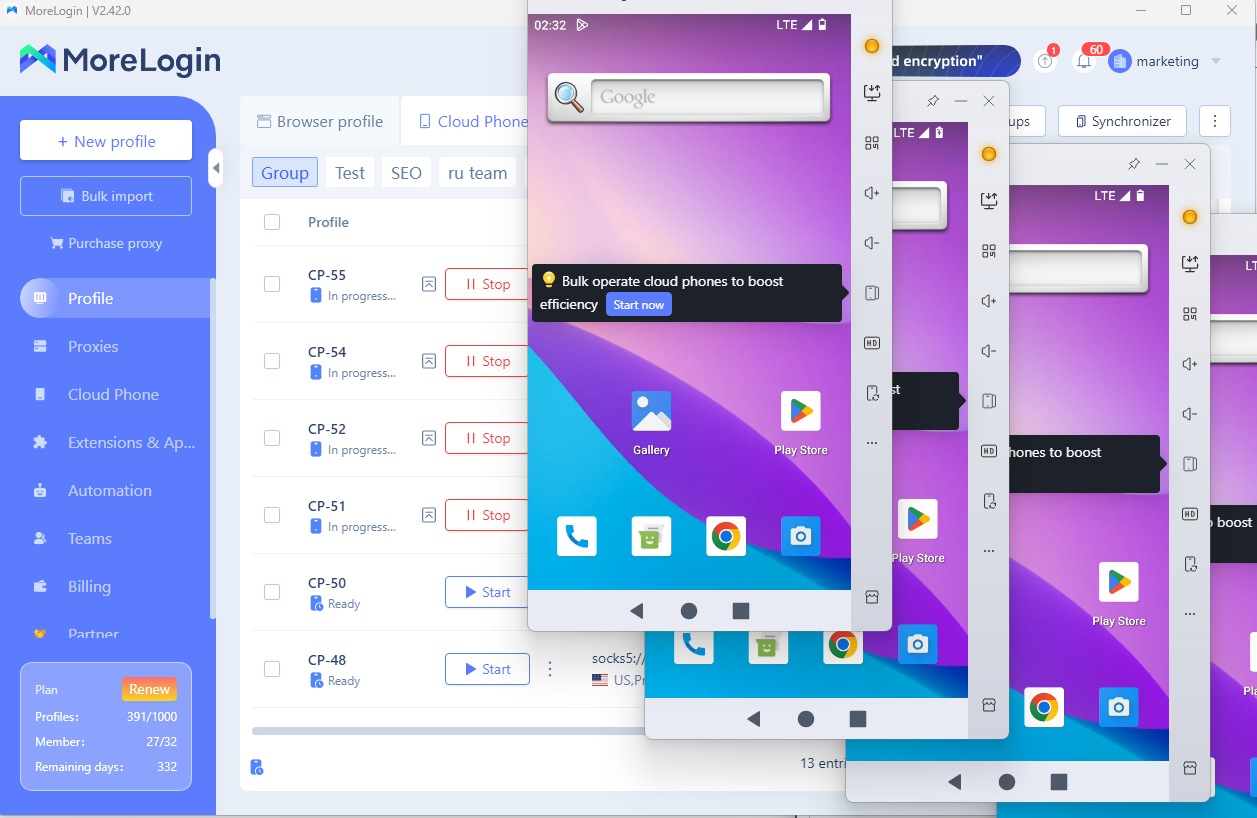
Morelogin cloud phone is a cloud-based virtual device service. It is useful for long gaming sessions and for managing many game accounts. Here are the main benefits of using Morelogin Cloud Phone:
Run Games 24/7 in the Cloud
The cloud device can keep games running all day. Users can farm items or level up accounts without using their own phone. There is no need to keep the game app open on the local device.
Use Multiple Accounts at the Same Time
Users can run more than one game account in separate cloud environments. The accounts do not affect each other. This helps with farming, testing, or managing many accounts at once.
Access the Cloud Device on Any Platform
Users can control the cloud phone from their phone. They can switch between devices at any time. This gives more freedom and control.
Stay Online Without Local Network Problems
The cloud phone runs in a fast and stable data center. Even if the user’s own network is unstable, the game can keep running in the cloud. This helps accounts stay online longer without interruptions.
This article provides a detailed introduction, covering the basic principles, device requirements, practical steps, and troubleshooting solutions. We especially recommend using the Morelogin cloud phone service to further enhance your overall experience and achieve true cloud gaming freedom.
 EN
EN
.png)